What You'll Build
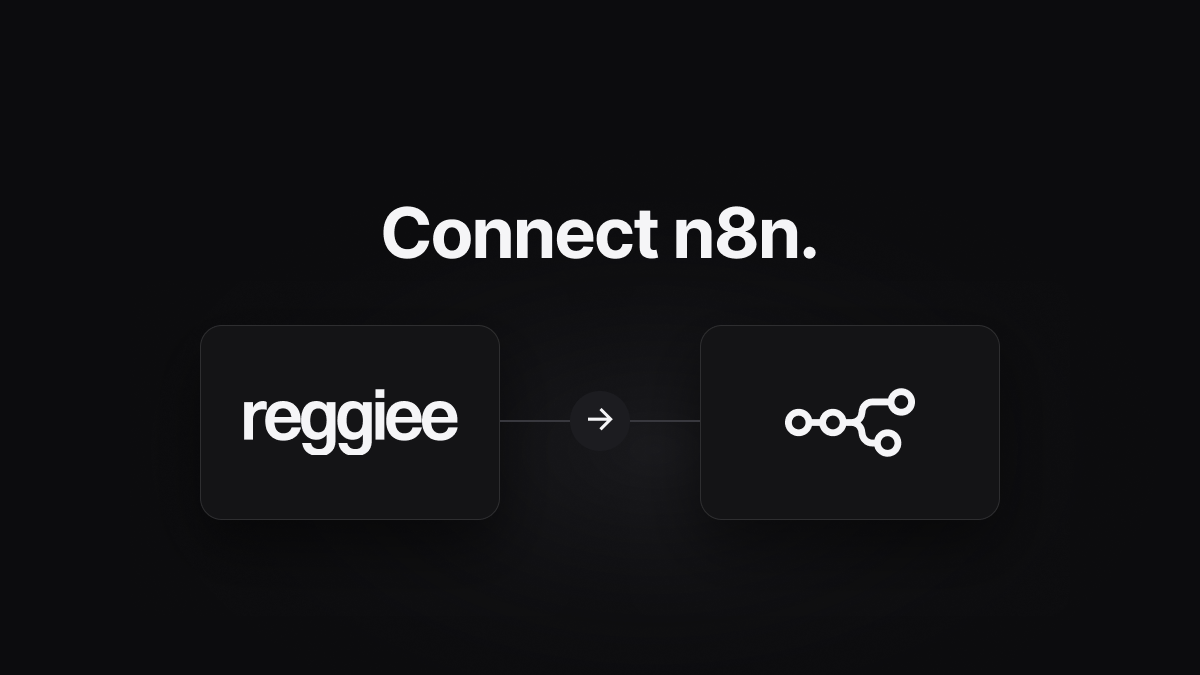
Every Reggiee registration triggers an n8n workflow via webhook. From there you can transform, filter, and forward attendee data to any system — a database, email platform, CRM, spreadsheet, or internal API. Because n8n is open source, you have complete control over where data lives.
What You'll Need
- A Reggiee account with at least one active event page
- An n8n instance — either n8n Cloud (free trial available) or a self-hosted instance
Step 1 — Create a New Workflow with a Webhook Trigger
Open your n8n instance and click New Workflow. Search for the Webhook node and add it as the first node.
In the Webhook node settings:
- Set HTTP Method to POST
- Leave Path as the auto-generated value or set a custom one (e.g.
reggiee-registrations) - Set Response Mode to Respond Immediately
Click Listen for Test Event — n8n will display the webhook URL. Copy it.
Step 2 — Add the Webhook URL to Reggiee
In your Reggiee dashboard, open the event you want to connect. Go to the Integrations tab, scroll to Send to webhook, and enable it. Paste the n8n webhook URL and save.
Optional — HMAC verification: Set an HMAC secret in Reggiee and add a Code node in n8n to verify the x-reggiee-signature header:
const crypto = require("crypto");
const secret = "your-secret-here";
const body = JSON.stringify($input.item.json.body);
const expected = crypto.createHmac("sha256", secret).update(body).digest("hex");
const received = $input.item.json.headers["x-reggiee-signature"];
if (expected !== received) throw new Error("Invalid signature");
Step 3 — Capture a Test Payload
With n8n listening, go to your Reggiee event page and submit a test registration. n8n will receive the payload and display all fields in the node output panel.
Registration data is accessible at {{ $json.body.registration.email }}, {{ $json.body.registration.first_name }}, {{ $json.body.page.title }}, etc.
Step 4 — Add Action Nodes
Click the + after the Webhook node to add processing steps:
- Google Sheets → Append Row — Log every attendee with auto-mapped columns.
- HTTP Request — POST to any internal API or third-party service.
- Postgres / MySQL / Supabase — Insert a row directly into your own database.
- Send Email (SMTP / Gmail) — Send a confirmation email from your own domain.
- Slack / Discord — Post real-time registration alerts to your team.
- IF node — Branch logic based on which event page the registration came from.
Step 5 — Activate the Workflow
Click the toggle in the top-right to Activate the workflow. Update the Webhook URL in Reggiee to the Production URL if it differs from the test URL.
n8n shows both a Test URL (only active while you're listening) and a Production URL (always active). Always use the Production URL in Reggiee for live events.
Self-Hosting Notes
If you run n8n on your own server, make sure it's accessible over HTTPS with a valid SSL certificate — Reggiee requires HTTPS for webhook delivery. Put n8n behind a reverse proxy (Caddy or nginx) with a Let's Encrypt certificate.
Tips & Troubleshooting
- Webhook not receiving data? Check that your n8n instance is reachable from the internet. Use webhook.site to confirm Reggiee is firing correctly.
- Data path: The JSON body is nested under
$json.bodyin n8n's Webhook node. Use Set nodes to flatten the structure if needed. - Retry logic: Reggiee fires the webhook once. For critical workflows, use n8n Cloud which has built-in reliability guarantees.