Setup guide
Claude custom connector
Five screens. Settings → Customize → Connectors. Authentication is None. Send your rmcp_ key as an authorization header.
MCP URL
Paste this into URL, then Continue. Do not use OAuth.
Header
Name is authorization. Include the auth scheme in the value.
Step 1
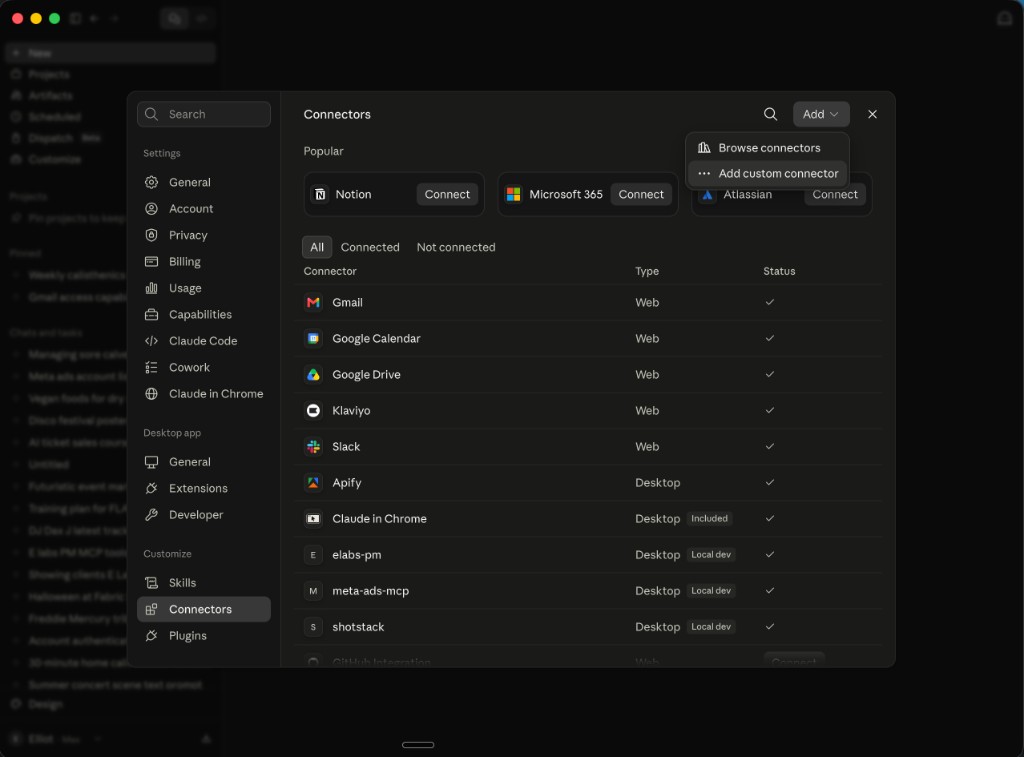
Open Connectors and add a custom connector
In Claude, open Settings. Under Customize, click Connectors. Click Add in the top right, then Add custom connector. No Node, and no JSON config file.
Click the screenshot to open it full size. Step 2
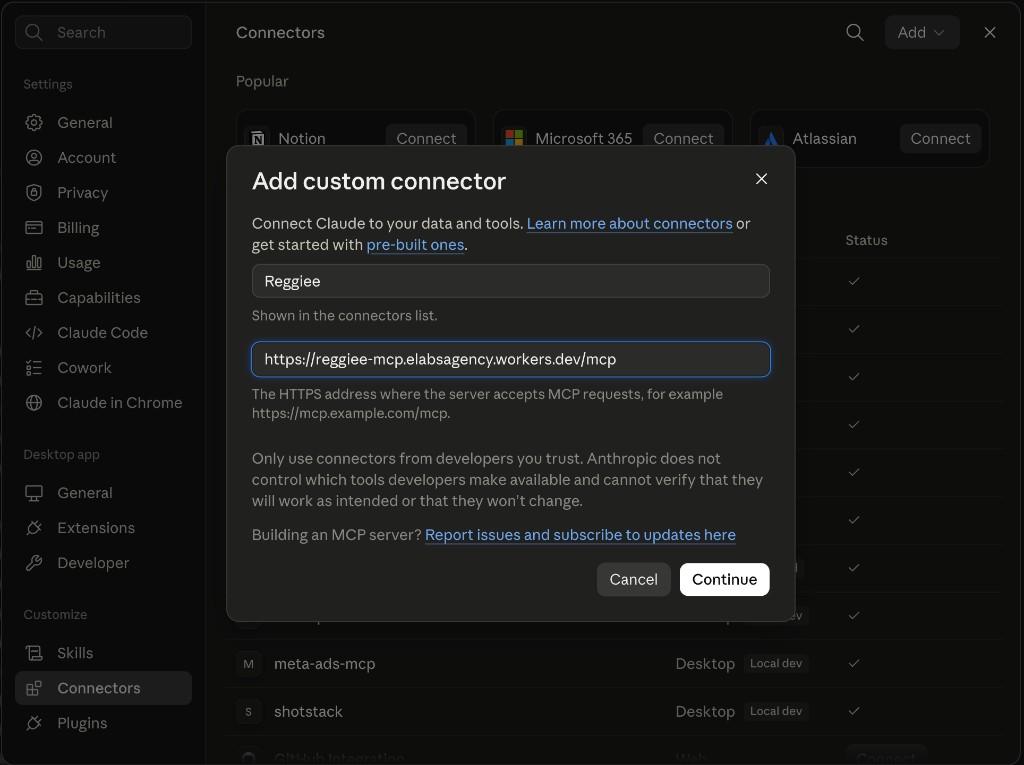
Name it Reggiee and paste the URL
Name: Reggiee. URL: https://reggiee-mcp.elabsagency.workers.dev/mcp. Click Continue.
Click the screenshot to open it full size. Step 3
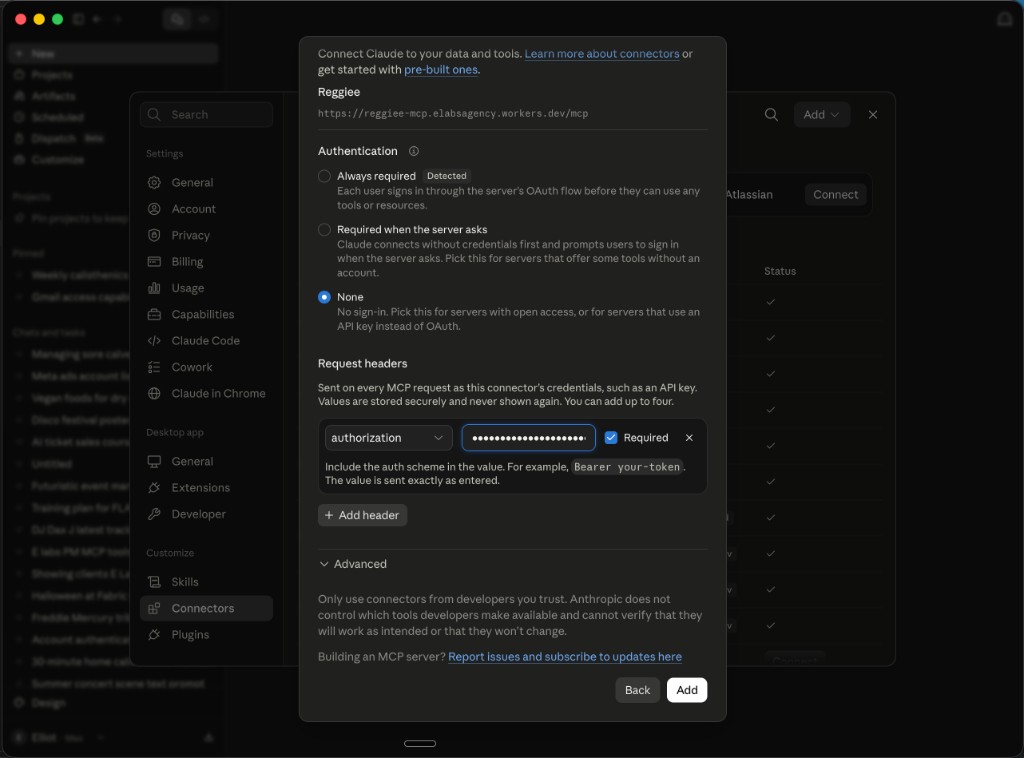
Authentication None, then add the API key header
Pick None. Claude may detect OAuth anyway. Override it. Under Request headers, choose authorization. Value is Bearer rmcp_YOUR_KEY. Tick Required, then Add.
Include the auth scheme in the value, exactly as Bearer rmcp_YOUR_KEY. Do not pick Always required.
Click the screenshot to open it full size. Step 4
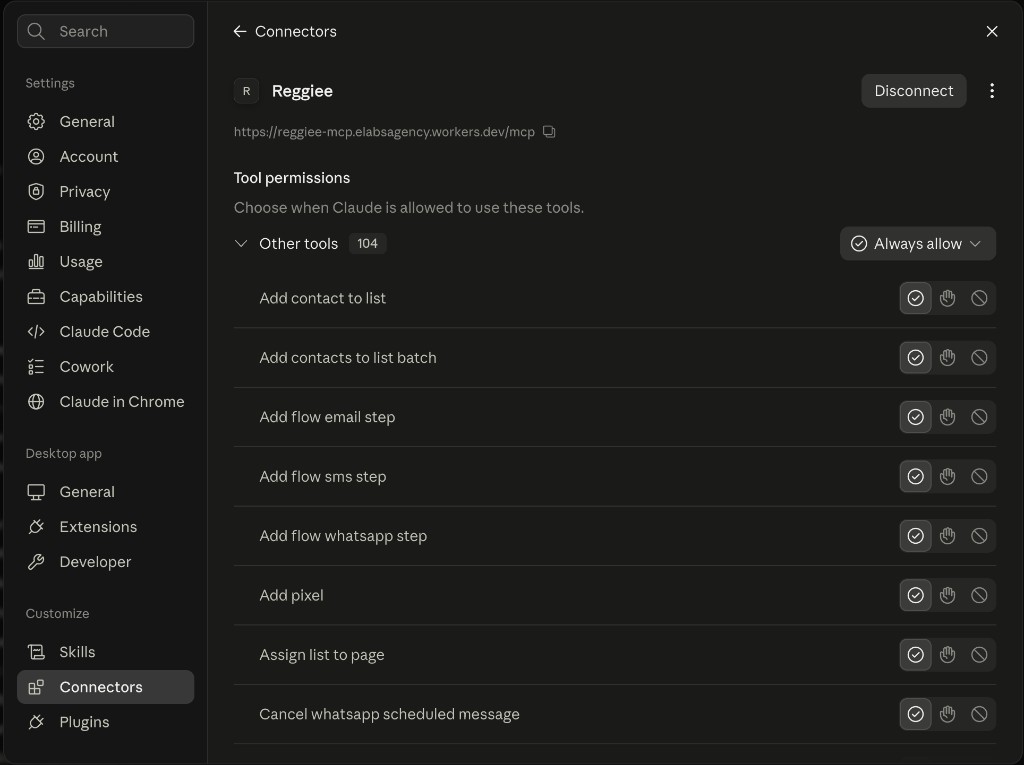
Check the tools are connected
Reggiee should show as connected, with the MCP URL and a list of tools. Set Other tools to Always allow if you want Claude to run them without asking every time.
Click the screenshot to open it full size. Step 5
Ask in a chat
Start a new chat and try: reggie mcp, list my brands. You should see a tool call, then the brands on this account.
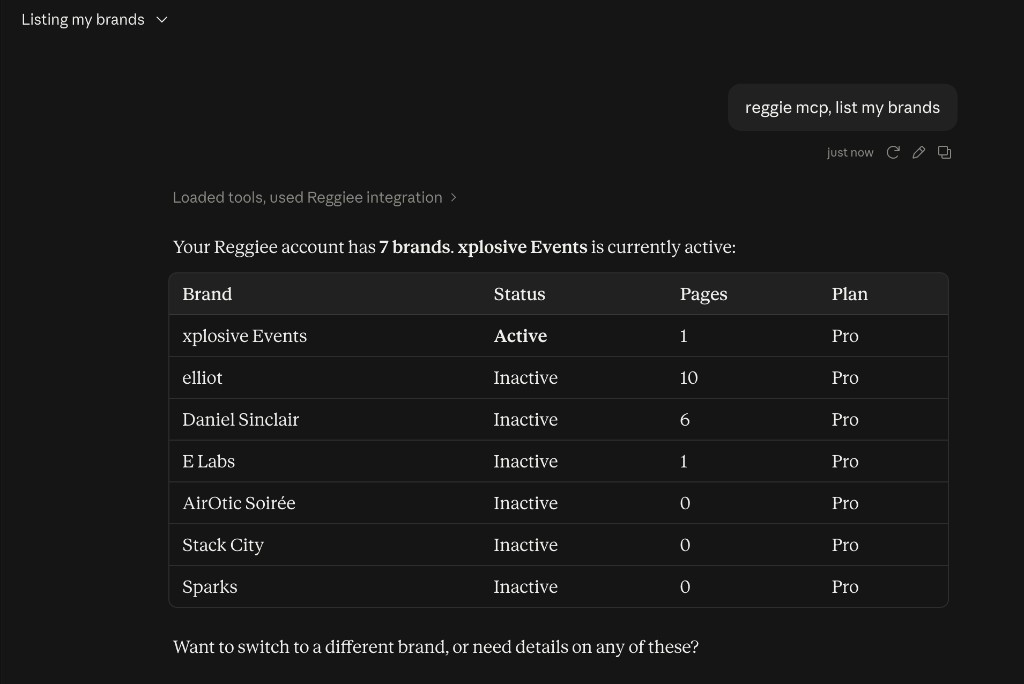
Click the screenshot to open it full size.