Setup guide
ChatGPT on the web
OAuth is not live on this server yet. Use the ChatGPT desktop guide with an Authorization header instead.
MCP URL
Paste this into Server URL. Authentication is OAuth. Leave Advanced OAuth empty.
Step 1
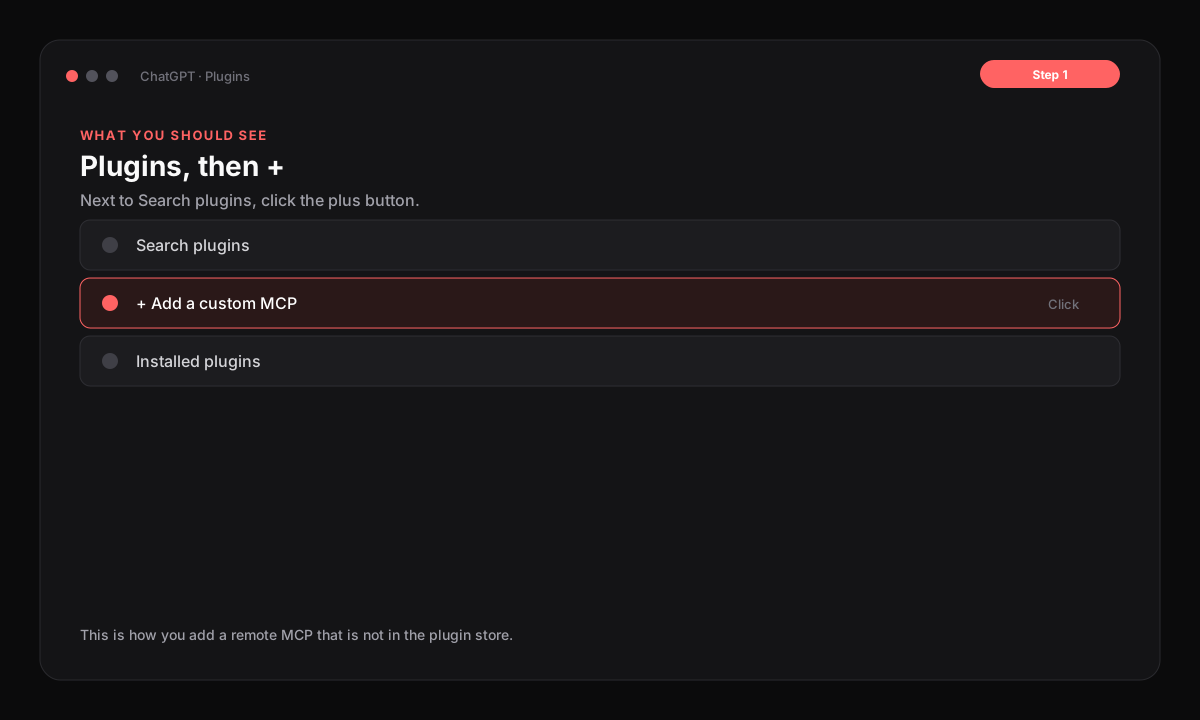
Open Plugins and click +
In ChatGPT on the web, open Plugins. Next to Search plugins, click the + button. That is how you add a custom MCP.
Click the screenshot to open it full size. Step 2
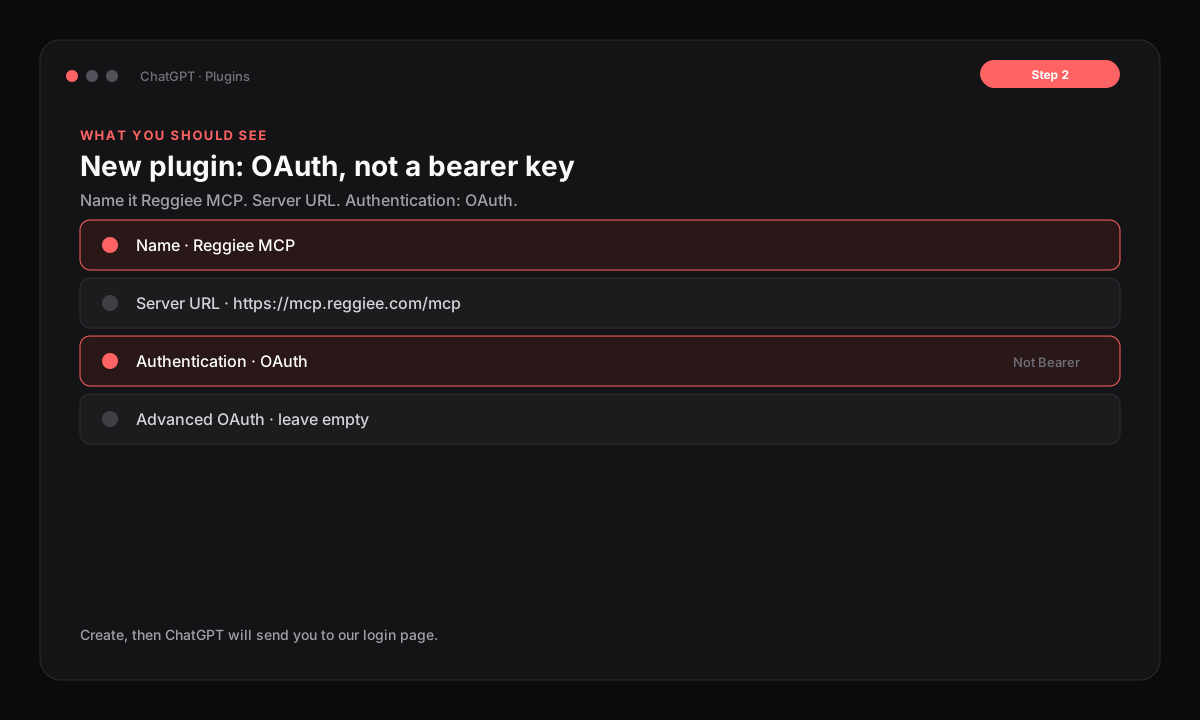
Name it, paste the URL, choose OAuth
Name: Reggiee MCP. Connection: Server URL. URL: https://reggiee-mcp.elabsagency.workers.dev/mcp. Authentication: OAuth. Tick I understand and want to continue, then Create. Leave Advanced OAuth settings empty.
Click the screenshot to open it full size. Step 3
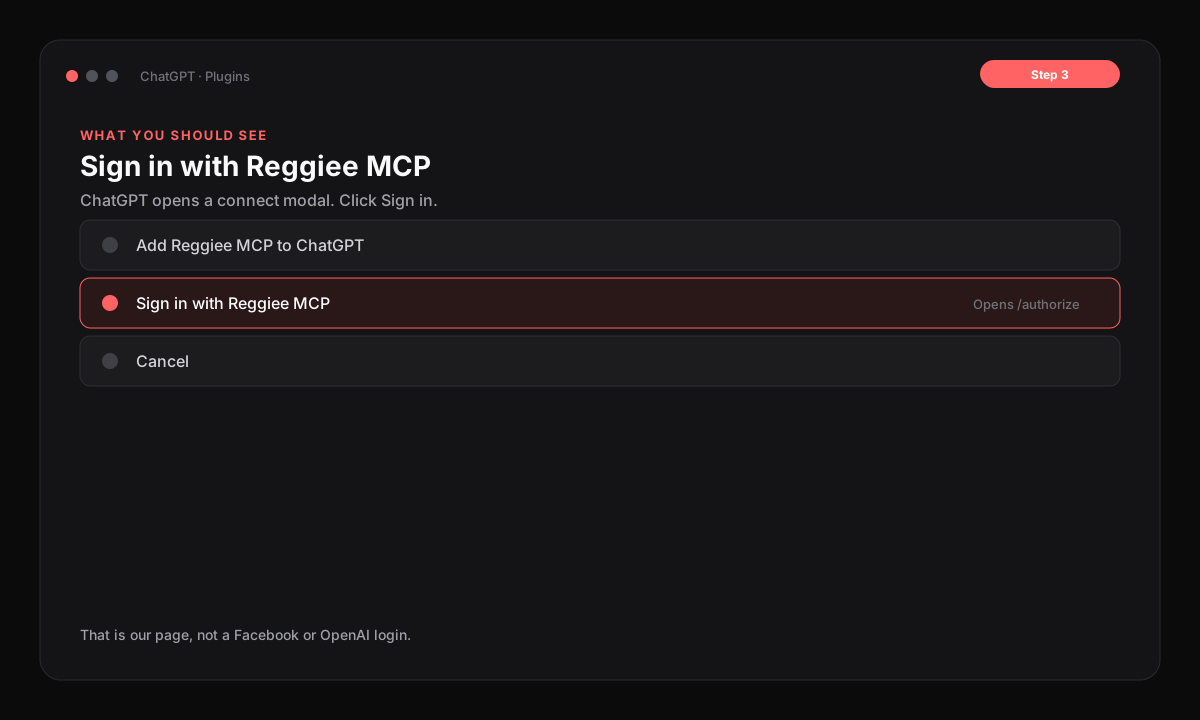
Click Sign in with Reggiee MCP
ChatGPT shows Add Reggiee MCP to ChatGPT. Click Sign in with Reggiee MCP. That opens our login page.
Click the screenshot to open it full size. Step 4
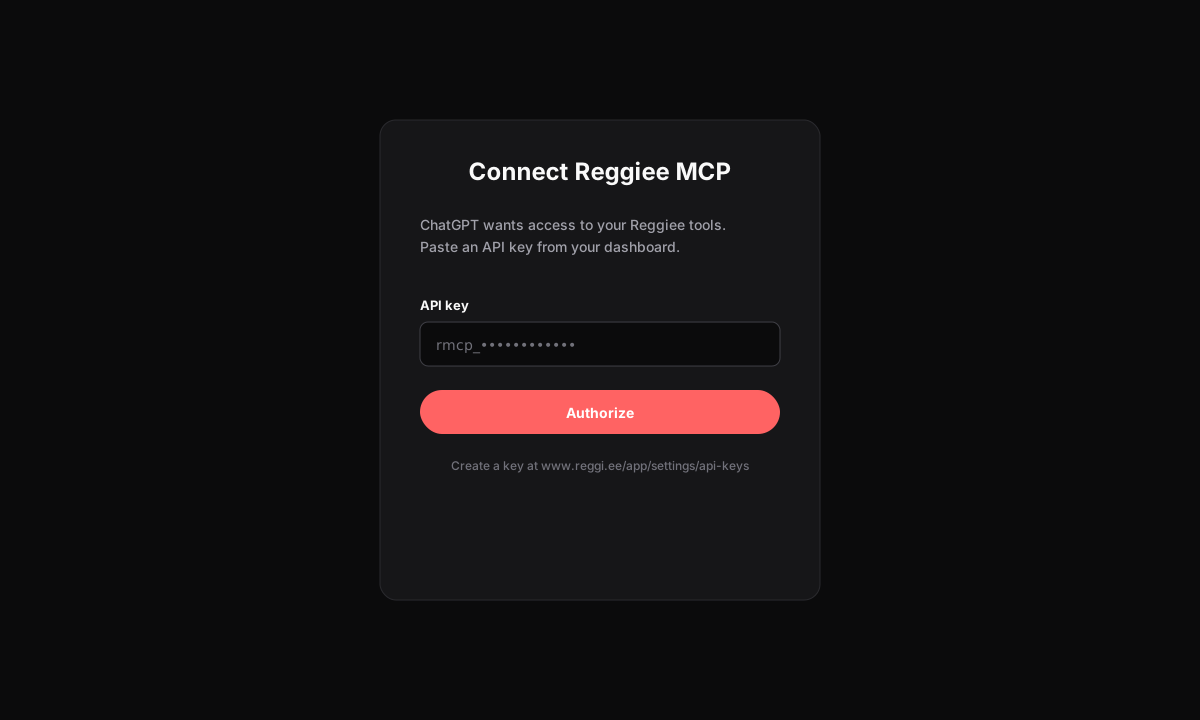
Paste your rmcp_ key
Paste an API key from Settings → API Keys. It starts with rmcp_. Click Authorize. Do not put the key in ChatGPT’s bearer field.
Click the screenshot to open it full size. Step 5
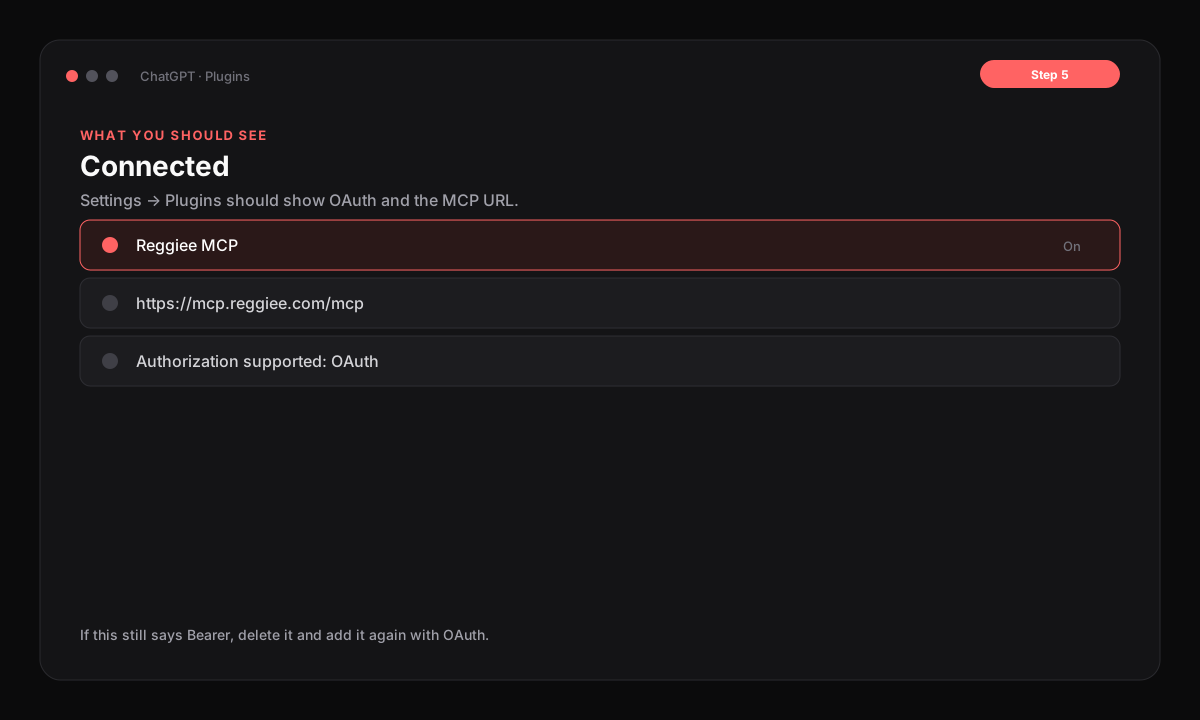
Check it is connected
Back in Settings, Plugins, Reggiee MCP should show the MCP URL and Authorization supported: OAuth.
Click the screenshot to open it full size. Step 6
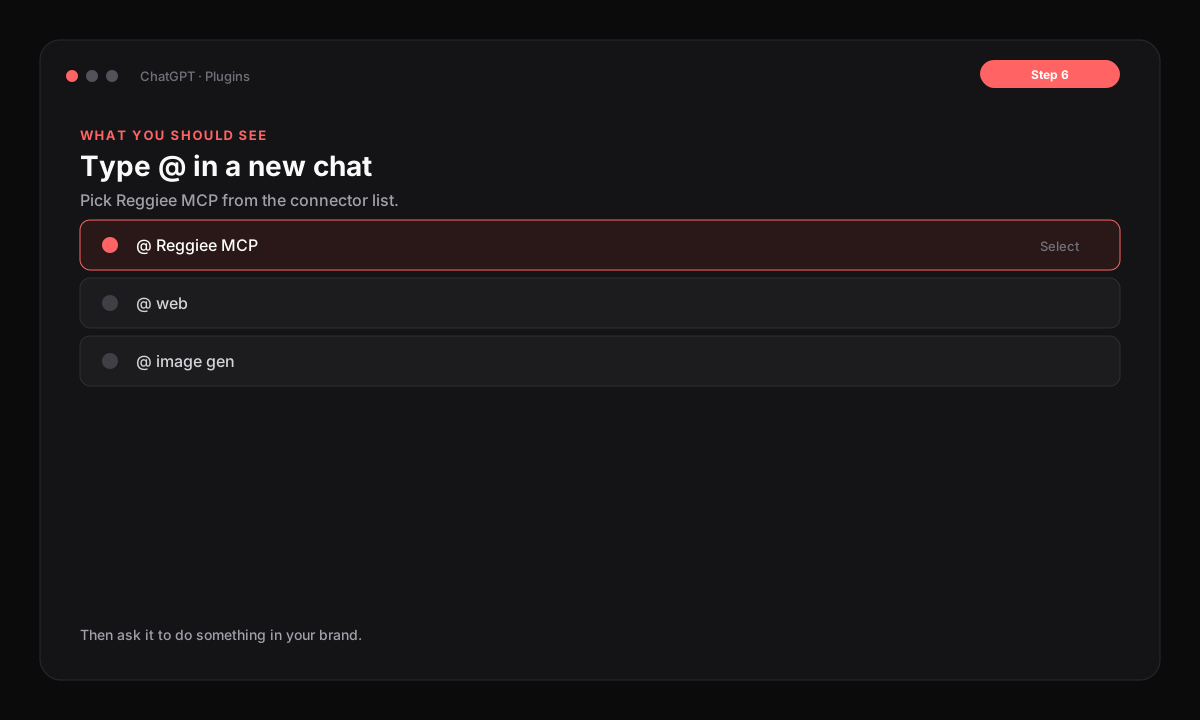
Type @ and pick Reggiee MCP
Start a new chat. Type @ in the composer and select Reggiee MCP from the list.
Click the screenshot to open it full size. Step 7
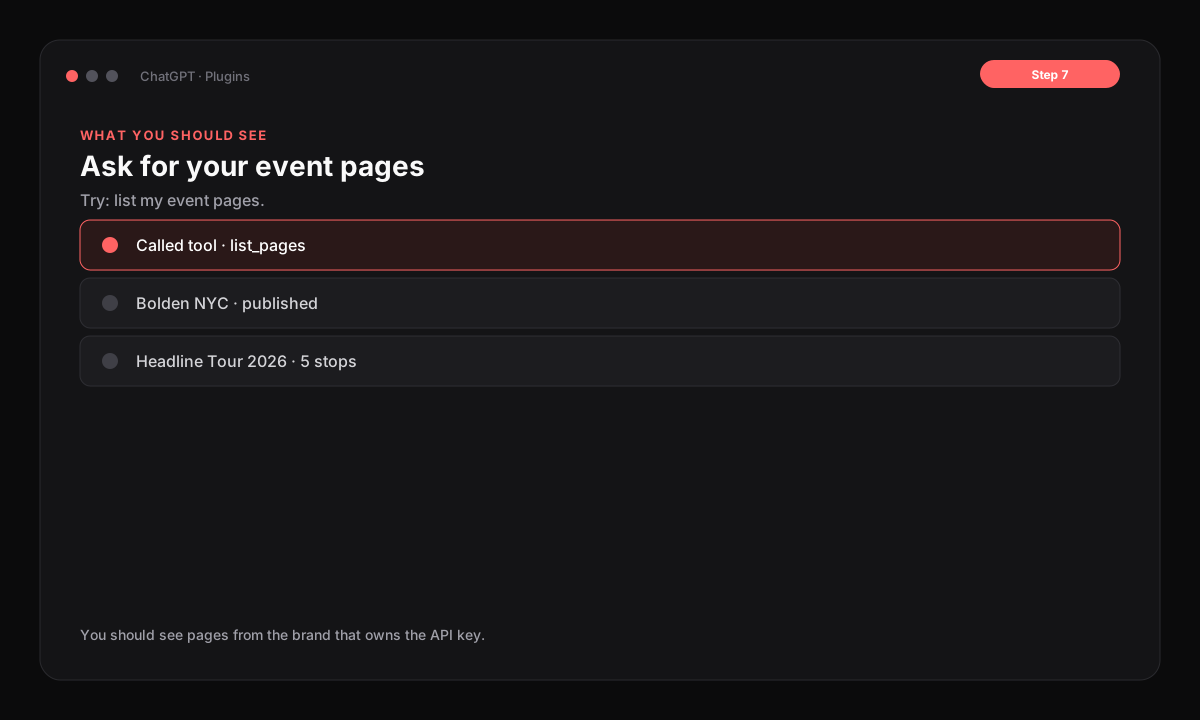
Ask for your event pages
Try: list my event pages. You should see a tool call, then the pages on this brand.
Click the screenshot to open it full size.