What You'll Build
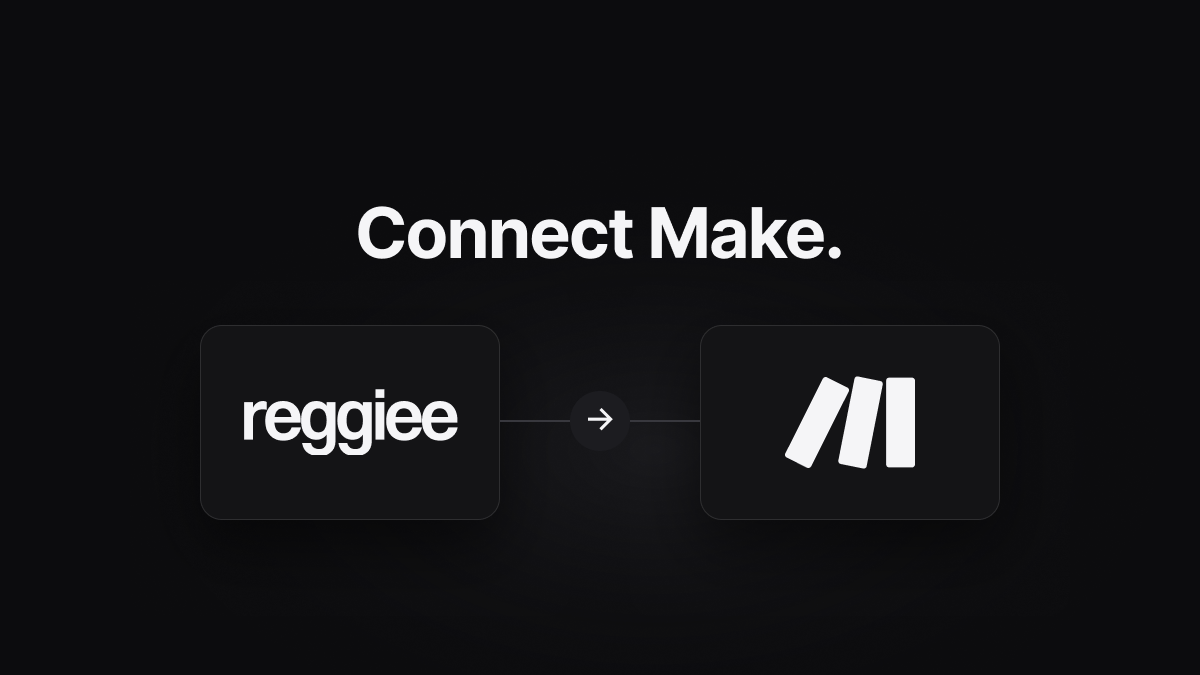
Every new Reggiee registration fires a webhook into Make. From there you can route data into any combination of apps — sending a personalised email, creating a Notion page, logging to a Google Sheet, notifying your team on Slack, or syncing to a CRM — all in a single visual scenario.
What You'll Need
- A Reggiee account with at least one active event page
- A Make account — the free plan includes 1,000 operations/month
Step 1 — Create a New Scenario
Log in to make.com and click Create a new scenario. In the module picker, search for Webhooks and select the Custom webhook module as your trigger.
Click Add to create a new webhook, give it a name like Reggiee Registrations and click Save. Copy the generated URL.
Step 2 — Add the Webhook URL to Reggiee
In your Reggiee dashboard, open the event you want to connect. Click the Integrations tab, scroll to Send to webhook, and enable the toggle.
Paste the Make webhook URL into the Webhook URL field and save your event.
Step 3 — Capture a Sample Payload
Your scenario is now waiting for its first payload. Go to your Reggiee event page and submit a test registration. Make will automatically detect and parse the JSON, making all fields available as variables.
You'll see fields like registration.email, registration.first_name, registration.last_name, registration.phone, page.title, and page.path.
Step 4 — Add Modules to Process the Data
Click the + icon after the webhook module to add actions:
- Google Sheets → Add a Row — Log every registration to a spreadsheet.
- Gmail / Brevo / Mailchimp → Send an Email — Send a personalised confirmation or welcome email directly from Make.
- HubSpot → Create/Update Contact — Upsert a contact record using the attendee's email.
- Slack → Send a Message — Post a real-time alert to your events channel.
- Notion → Create a Database Item — Track every attendee in a Notion guest list database.
Step 5 — Add a Router for Multiple Events
If you run multiple events, use Make's Router module to split the flow based on page.path or page.title. Each branch can have its own set of actions.
Step 6 — Activate Your Scenario
Toggle the scenario to On. Set it to trigger Immediately for real-time processing. Make will now handle every Reggiee registration automatically.
Tips & Troubleshooting
- Scenario not triggering? Re-check the webhook URL in Reggiee is saved correctly. Click Run once in Make and submit another test registration to force a manual run.
- Optional fields: Use Make's ifempty function to handle null values for optional fields like phone.
- Error handling: Add a Resume or Ignore error handler on modules that might fail (e.g. duplicate contacts in your CRM).
- Operations count: Each module execution counts as one operation. A scenario with 3 modules uses 3 operations per registration.